What to confirm in a demo before commissioning
Before commissioning a graphic designer portfolio app, confirm these demo features to match your workflow and avoid missing key capabilities.
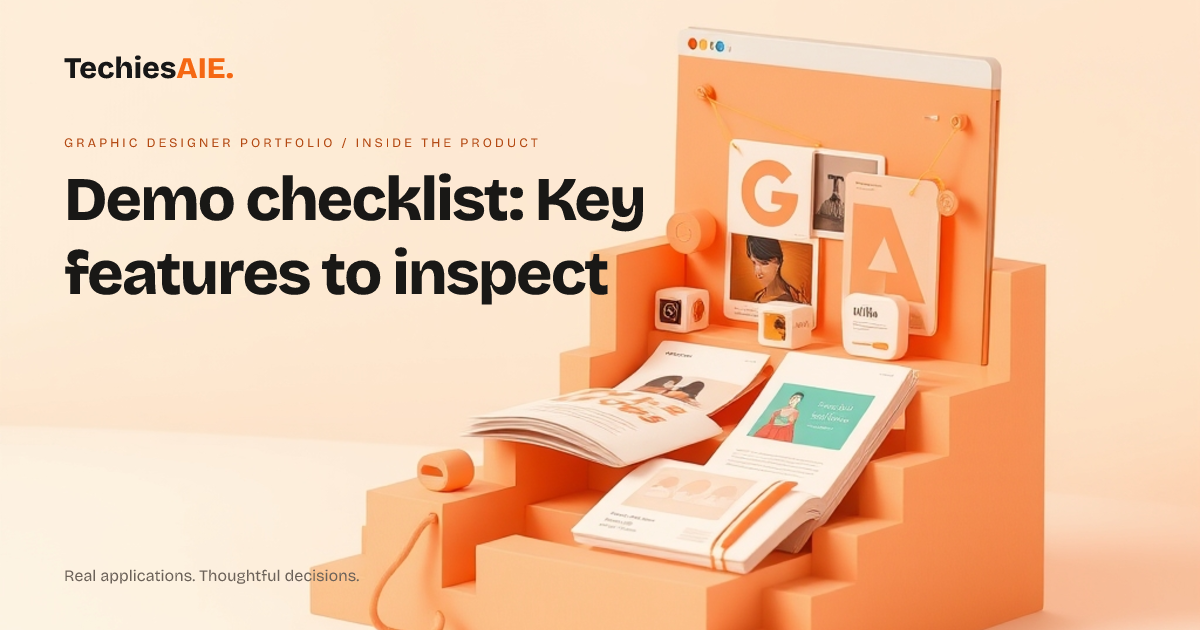
A demo of a graphic designer portfolio app should show how your actual projects will look. The Graphic Designer Portfolio demo lets you preview brand identities, editorial layouts, and packaging work in one place. This is useful if you want to show clients a clean, organized view of your past projects without clutter. Explore Graphic Designer Portfolio
Start by checking if the demo lets you group projects by type—like brand identity, editorial design, or packaging. The demo shows these categories clearly, which helps if you want clients to see your range at a glance. This is a key feature to confirm before commissioning.
What to see in a project gallery
Look for a gallery that shows high-quality images of your work. The demo includes a visual project gallery where each piece stands out. This matters if you rely on strong visuals to attract clients. Ask if you can upload your own images or if the demo is just a template demonstration.
Next, check if the demo lets you add project details like client names, years, or short descriptions. The demo shows sample projects with basic info, but you’ll need to confirm if this can be customized. This helps if you want to explain your process or highlight key achievements.
Also, see if the demo lets you sort projects by date, type, or client. The demo uses a simple layout, but sorting is often a missing feature in basic templates. This is important if you want to keep track of jobs by category or timeline.
How layouts handle your work
The demo uses an editorial layout with clean spacing and typography. Ask if you can adjust fonts, colors, or spacing to match your style. This is useful if you want your portfolio to feel unique, not like a generic template. Confirm if these changes require extra work or coding.
Check if the demo lets you mix different project types in one layout. For example, can you show a brand identity next to a packaging project without breaking the design? The demo keeps things simple, but flexibility is key if you want to highlight variety in your work.
What’s missing in the demo
The demo doesn’t show how to handle client feedback or revisions. If you often update projects based on client notes, ask how the app tracks changes. This is a common gap in portfolio tools and could slow you down later.
Also, confirm if the demo supports mobile views. The demo looks good on desktop, but many clients check portfolios on phones. Ask if the app adjusts layouts for smaller screens or if you’ll need extra work to make it mobile-friendly.
What a similar project would need
If you’re commissioning a portfolio app, start with a demo that shows your exact project types. The Graphic Designer Portfolio demo is a good starting point, but you’ll need to discuss customization for your specific needs. For example, if you work with video or interactive projects, confirm the demo supports these files. Explore TechiesAIE software services
Next, ask how easy it is to add new projects after launch. The demo shows sample content, but you’ll need to know if updating projects requires technical help or if it’s a simple process. This matters if you want to keep your portfolio fresh without extra hassle.
Finally, discuss who owns updates and access after the app goes live. The demo doesn’t show user roles, but if you work with a team, you’ll need to confirm how permissions work. For example, can you share a preview link without letting others edit your work? This is a key question to avoid future friction.
TechiesAIE can adapt portfolio apps like this one for your exact needs. For example, we’ve built similar tools for ecommerce product galleries and creative service trackers. Start by discussing your demo requirements—we’ll help you avoid missing features.